

Contact Sales Now
Thank you! Your submission has been received!
Oops! Something went wrong while submitting the form.

Contact Sales Now
Thank you! Your submission has been received!
Oops! Something went wrong while submitting the form.
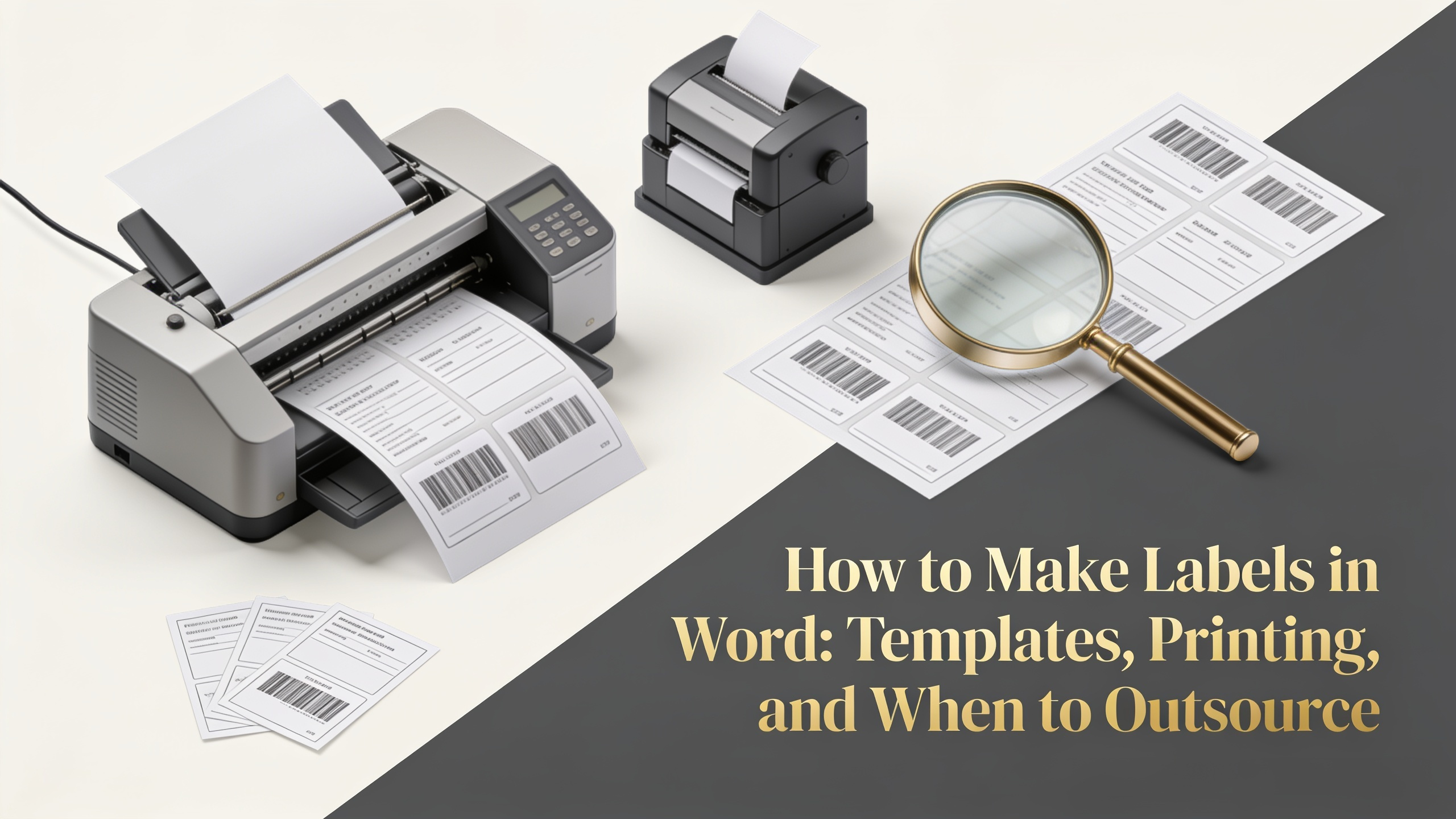
Microsoft Word remains the default tool for quick label jobs, from address stickers to file folder tags. It's accessible, familiar, and handles standard Avery templates without fuss. But once you push past basic addresses, Word's limitations surface fast.
This guide covers the full workflow inside Word, then shows where professional design software and commercial printing take over. If you're producing product labels, barcodes, or anything customer-facing, knowing when to switch tools saves money and protects your brand.
The Labels feature lives under the Mailings tab. Click Labels, then Options to select your vendor and product number. Avery, SheetLabels, and Herma codes are pre-loaded, which auto-configures margins, spacing, and dimensions.
Here's the core process for how to make labels in Word:
For formatting, treat the label sheet like a table. Each cell holds one label, so font sizing, alignment, and image insertion follow normal Word rules. Print a test sheet on plain paper first to confirm alignment before committing to label stock.
When your label stock isn't in Word's preset list, build a custom template. Inside the Label Options dialog, click New Label. You'll enter top margin, side margin, vertical pitch, horizontal pitch, label height, label width, number across, and number down.
Measure your sheet with a ruler or pull dimensions from the manufacturer's spec sheet. Pitch refers to the distance from the start of one label to the start of the next, not the gap between them. Confusing these two values is the most common alignment error.
Save the custom layout with a clear name like "Product-2x3-10up" so you can reuse it. Word stores custom labels locally, so back up your normal.dotm file if you rely on these templates across machines.
If you're asking how do you make labels in Word with different names, addresses, or SKUs on each one, mail merge handles it. Prepare an Excel file with column headers in row one, like FirstName, LastName, Address, City.
Run the merge through these steps:
Mail merge handles thousands of records cleanly, but watch for formatting drift. Excel may strip leading zeros from ZIP codes or convert long numbers to scientific notation. Format those columns as Text before saving.
For barcodes, you can insert merge fields inside a barcode font like Code 39, but the output isn't always scanner-reliable. This is one of the first signs you've outgrown Word.
Word handles text and basic graphics, but it wasn't built for production printing. Color management is the biggest issue. Word uses RGB by default, while commercial printers need CMYK. Colors that look vibrant on screen often print muddy or shifted.
Other constraints that hit fast:
For internal use, like inventory tags or office mailings, none of this matters. For retail-facing products, every one of these limits affects sales.
Once you outgrow Word, three categories of tools take over depending on your output.
Adobe Illustrator is the standard for product label design. It handles CMYK, spot colors, bleed, die-lines, and vector graphics natively. Print shops accept Illustrator files (AI, PDF/X) without conversion issues. The learning curve is steep, but the output is press-ready.
ND, expiration dates, lot codes, and serialization. It connects directly to databases and ERP systems, which Word's mail merge can't match at scale.
Online label designers like Canva, Avery Design & Print, and Adobe Express sit between Word and Illustrator. They're browser-based, include templates, and export print-ready PDFs. Good for small batches, branded labels, and teams without design staff.
Pick the tool based on volume and end use. Word for under 100 internal labels, online designers for small-batch branded work, BarTender for warehouse and compliance, Illustrator for retail products.
At some point, in-house printing stops making financial sense. The break-even depends on volume, material, and finish requirements.
Signs it's time to outsource:
Commercial printing also wins on consistency. A run of 5,000 labels from a press will match across every sheet. The same job split across desktop print sessions will drift in color and registration.
Cost-per-label drops sharply at scale. A 1,000-unit order from a commercial printer often costs less per piece than buying blank sheets and ink for the same job. Factor in your time, and the math gets clearer.
When you're ready to outsource, send vector files (PDF, AI, or EPS) with embedded fonts, 300 DPI minimum on raster elements, CMYK color mode, and 3mm bleed on all edges. Print partners like asaslabel.com handle the production side once your artwork meets these specs.
How do I make labels in Word from scratch without a template?
Go to Mailings > Labels > Options > New Label. Enter your custom dimensions for height, width, margins, and pitch. Save the layout with a unique name, then use it like any built-in template.
Can Word print barcodes that scanners read reliably?
No. Word can display barcode fonts like Code 39, but the output often fails GS1 or UPC validation. For scanner-grade barcodes, use BarTender, NiceLabel, or generate the barcode as an image in dedicated software.
How to make labels with different information on each one?
Use mail merge. Build your data in Excel, then connect it through Mailings > Start Mail Merge > Labels. Insert merge fields into the first label and click Update Labels to apply across the sheet.
Why are my labels printing misaligned?
Three common causes: wrong product code selected, printer scaling set to "Fit to Page" instead of 100%, or paper feed slipping. Print on plain paper first, hold it against a label sheet, and check alignment before using real stock.
How do you make labels in Word with images or logos?
Insert the image into the first label cell, resize it to fit, then copy and paste into remaining cells. For mail merge sheets, place the logo before running Update Labels so it replicates automatically.
Is Word good enough for product labels I sell to customers?
No. Word lacks CMYK color, bleed, and high-resolution image handling needed for retail-quality printing. Use Illustrator or an online label designer, then send the file to a commercial printer for production runs.
How do I make labels for shipping that match carrier requirements?
Most carriers (UPS, FedEx, USPS) provide their own label generators with proper barcode formats and sizing. Word can format the return address area, but the shipping barcode itself should come from the carrier's system.
What's the cheapest way to make labels for a small business?
For under 100 labels, Word plus Avery sheets works. For 100 to 1,000, use online designers with home printing. Over 1,000 or anything customer-facing, outsource to a commercial label printer — the per-unit cost drops below DIY.